CMYK vs RGB for printing: how to convert your files in 2026
Last updated: September 2026
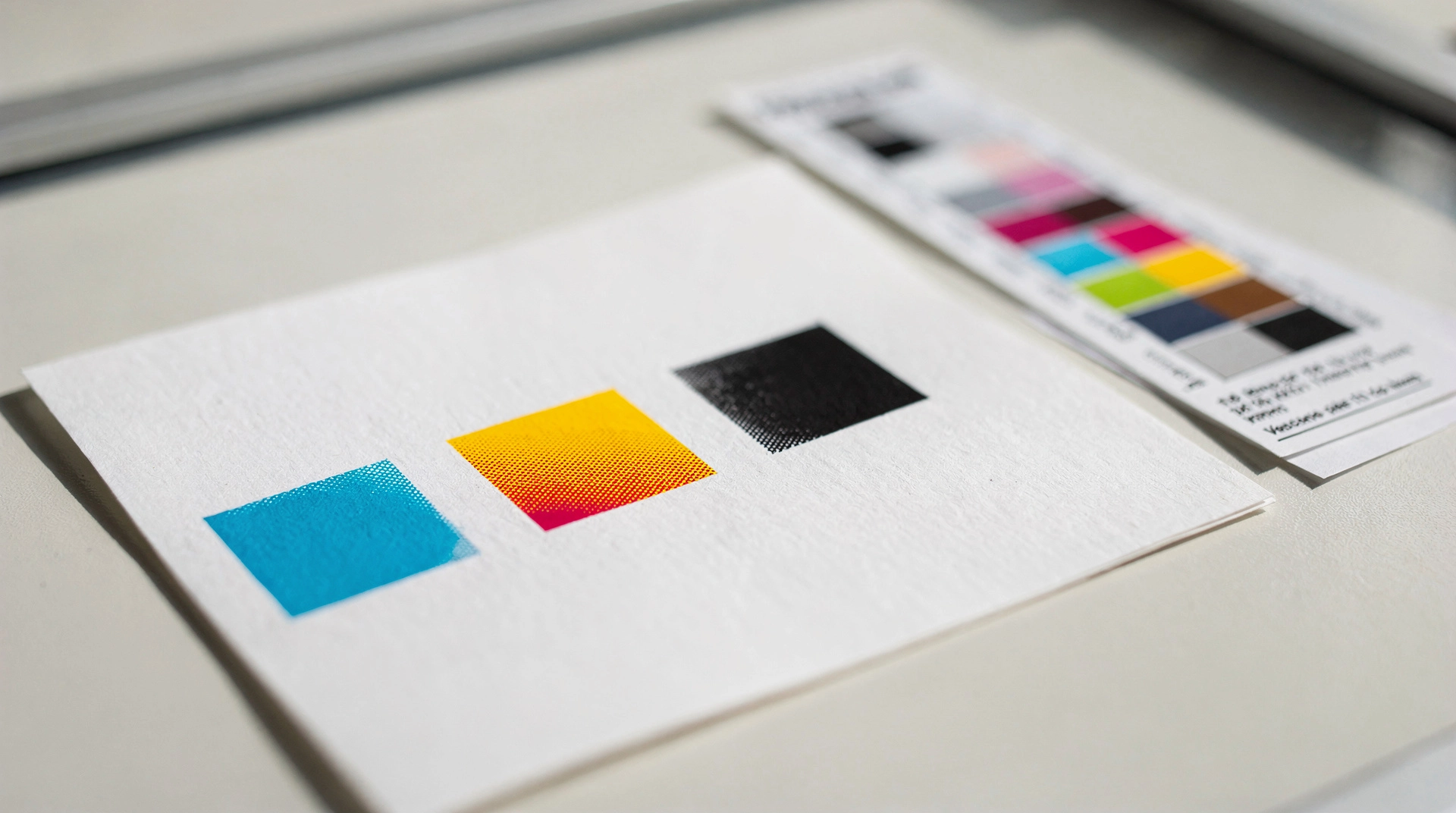
Build print files in CMYK and convert any RGB artwork before you upload it, because a press mixes cyan, magenta, yellow and black ink and cannot reproduce the brightest colours a screen makes with light. Printfast's artwork guidelines ask for CMYK and warn that RGB files may shift; it is the practical choice for Toronto designers who want a free 40-point artwork check to catch a stray RGB image, with the con that a PDF soft proof does not guarantee colour.
Why the screen and the print never match
A monitor adds red, green and blue light and can show a glowing blue or neon green. A press lays cyan, magenta, yellow and black ink on white paper, and ink absorbs light, so the CMYK range is smaller: the brightest RGB blues, greens and oranges become the nearest duller mix. Printfast's artwork guidelines add that a print preview is not a reliable colour check, since monitor calibration, screen resolution and lighting change what you see, and that many Pantone colours shift in four-colour process.
How to convert your files to CMYK in eight steps
1. Start new documents in CMYK
Converting at the end fixes the file, not the colours you chose. Photoshop: CMYK Color under Color Mode in the New Document dialog. Illustrator: File, Document Color Mode, CMYK Color. Affinity: File, Document Setup, colour format CMYK/8. Canva has no CMYK mode; see step 5. Printfast's guidelines say it in one line: start and finish the design in CMYK.
2. Convert a Photoshop file
Soft proof first: View, Proof Setup, Working CMYK, then View, Proof Colors shows how the file will print without changing it. Then use Image, Mode, CMYK Color, or Edit, Convert to Profile to choose the profile yourself. Flatten layers with blend modes first and keep an RGB copy; conversion discards colour for good.
3. Convert Illustrator artwork
File, Document Color Mode, CMYK Color switches the document but not every object, so select all, run Edit, Edit Colors, Convert to CMYK, and check the Swatches panel for anything still RGB. Placed images keep their own mode: convert any RGB photo in Photoshop and relink it from the Links panel.
4. Convert InDesign layouts
InDesign converts at export. Choose File, Export, Adobe PDF (Print), a PDF/X-4 or PDF/X-1a preset, and on the Output tab set Color Conversion to Convert to Destination (Preserve Numbers) with a CMYK destination. First open Window, Output, Separations Preview, set to Ink Limit, to spot RGB images and heavy ink.
5. Export from Canva
Canva works in RGB, so pick muted tones on purpose. When you download, choose PDF Print, tick crop marks and bleed, and set the colour profile to CMYK where your plan offers it; if it does not, tell the printer the file is RGB. Printfast's FAQ notes that its online design studio accepts RGB and maps it to CMYK.
6. Export from Affinity
With the document in CMYK/8, use File, Export, PDF with the PDF (for print) or a PDF/X preset, and confirm the colour space is CMYK and fonts are embedded. A Soft Proof adjustment shows the result first.
7. Fix the colours that moved
Pure RGB blue converts to roughly equal cyan and magenta and prints purple. The usual fix is magenta at least 30 points below cyan, for example C100 M70 Y0 K0, typed in by hand. Bright greens and oranges go flat; retype them as CMYK values. For text use C0 M0 Y0 K100, which the Printfast FAQ recommends. For large solids the common rich black is C60 M40 Y40 K100 (240 per cent ink); the FAQ caps total ink at 300 per cent, or 280 on coated paper, so never use registration black, and keep rich black off small type, where misregistration shows as a coloured fringe.
8. Export and check the file
Export a PDF with fonts embedded or outlined, images at 300 dpi at final size for cards, flyers and brochures and 150 dpi for posters and signs, and 0.125 in of bleed, the figures in Printfast's guidelines. Flatten transparency, turn off overprint, both flagged in the FAQ, and send front and back as separate files. Confirm in an output preview that every object reports CMYK.
What the finished file should look like
The document mode reads CMYK, the Swatches and Links panels show no RGB items, text is 100 K only, large blacks are a rich black under 300 per cent ink, and the PDF has 0.125 in of bleed with text 0.125 in inside the trim. It looks slightly duller on screen than the RGB original.
Troubleshooting
- Blue printed purple. Too much magenta survived. Rebuild it as C100 M70 Y0 K0 or lower the magenta until a printed swatch looks right.
- Everything looks dull. That is the CMYK range; add contrast instead of chasing brightness.
- Black text looks grey or fuzzy. It became a four-colour black. Reset it to C0 M0 Y0 K100.
- The shop says the file is still RGB. A placed photo or logo kept its own profile. Convert each linked image, relink and export again.
RGB, CMYK and spot colour compared
| Colour model | How it makes colour | Where it belongs | Best for |
|---|---|---|---|
| RGB | Red, green and blue light added on a screen | Web, social, email, on-screen proofs | Anything viewed on a device |
| CMYK | Cyan, magenta, yellow and black ink layered on paper | Every print file: cards, flyers, brochures, posters, signs | Full-colour print at any quantity |
| Pantone spot | Premixed ink matched to a printed swatch book | One- to three-colour offset and screen jobs | Exact brand colours across many items |
What Printfast offers
Printfast has printed in Toronto for 45 years, publishes its file rules on the artwork guidelines page and in its FAQ, and gives every upload a free 40-point artwork check. It prints 12pt business cards at 3.5 x 2 in on gloss, matte or uncoated stock from 25 to 10,000, flyers on 100 lb gloss in 18 sizes, 8.5 x 11 in brochures, and custom-size posters on 9 mil gloss or matte paper, which the page says print on wide-format inkjet at 150 dpi. Standard turnaround is 3 to 5 business days with a 1:00 pm EST cut-off; the poster page also lists next-business-day and 1-hour options.
- Pros: published CMYK and resolution specs; the artwork check flags RGB files; the online studio maps RGB to CMYK; free pickup in Scarborough.
- Cons: PDF soft proofs do not guarantee colour, so a hard copy proof adds time; posters and signs are 150 dpi inkjet, not offset; 3 to 5 business days unless you pay for rush.
- Best for: Toronto and GTA designers who want a colour-critical file checked by a person before it prints.
Frequently asked questions
Can I send an RGB file to a printer?
You can, but Printfast's artwork guidelines warn that an RGB file may shift in colour and ask for CMYK. Convert it yourself so you see the shift before the shop does, or use the online design studio, which maps RGB to CMYK for you.
Why does my blue print purple?
Pure RGB blue converts to almost equal cyan and magenta, and the magenta pulls the mix toward purple. Rebuild the blue in CMYK with magenta at least 30 points below cyan, such as C100 M70 Y0 K0.
What CMYK values should I use for black?
Use C0 M0 Y0 K100 for text, as Printfast's FAQ recommends. For large solid areas a rich black such as C60 M40 Y40 K100 prints deeper; keep total ink under the FAQ's 300 per cent limit, or 280 per cent on coated stock.
Does Canva export in CMYK?
Canva works in RGB; the CMYK colour profile is a download option under PDF Print on plans that include it. Otherwise export PDF Print with crop marks and bleed, tell the printer the file is RGB, and expect bright colours to soften.
Related guides
- What is bleed in printing and why it matters
- What file format is best for printing
- How to prepare a print-ready PDF: complete 2026 workflow
- Digital vs offset printing: what is the difference
- How to design a tri-fold brochure for print: 2026 guide
- What is the standard business card size in Canada
- What is the best size for a roll-up banner
- Printing turnaround times in Toronto by product 2026
- How much does yard sign printing cost in Ontario in 2026
Get your file checked and priced
Send the product, size, quantity and stock, attach the PDF, and say if colour matching matters: request a quote.