

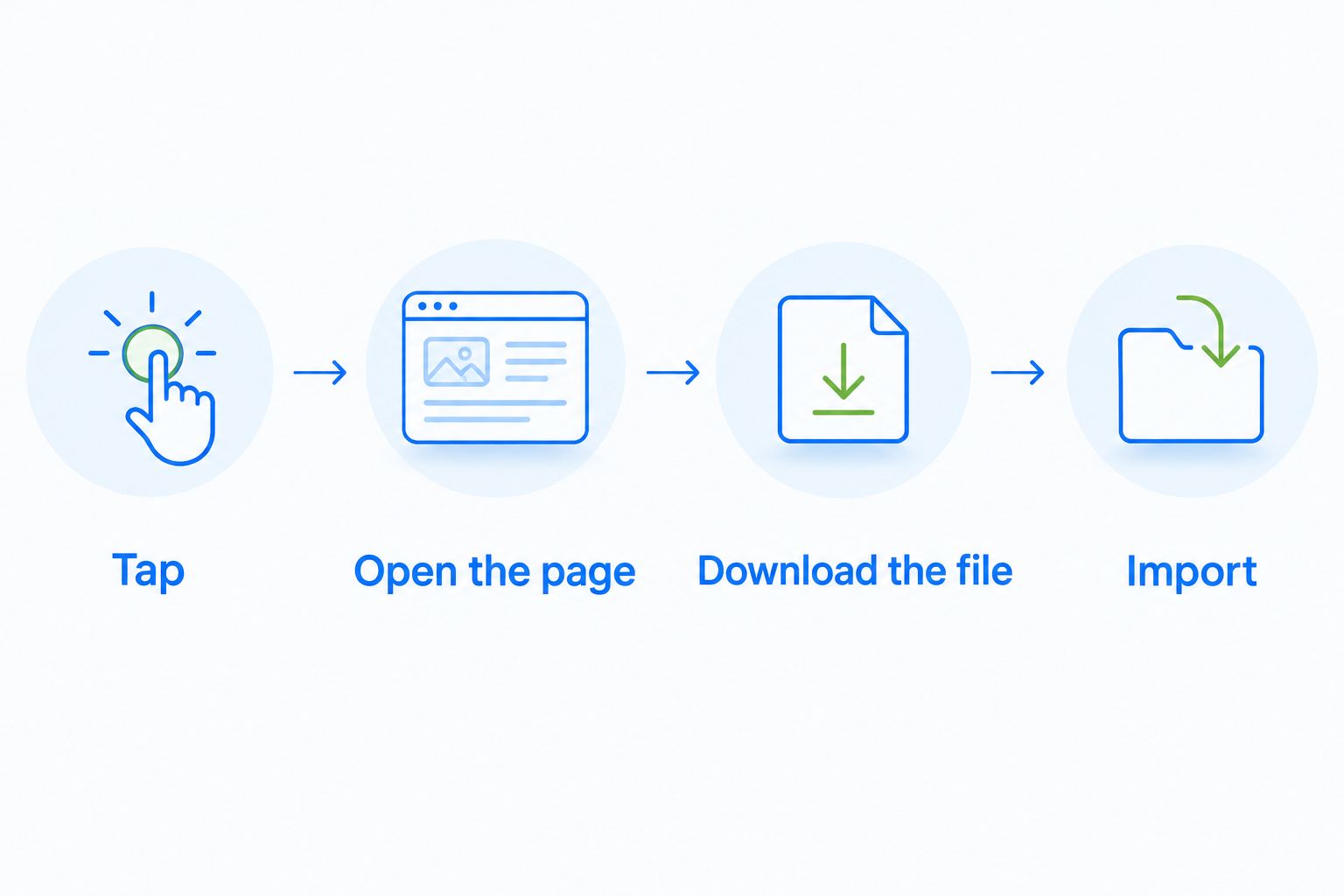
Instead of retyping contact details after every introduction, connect your NFC business card to a contact page with a downloadable vCard, then import that file into Google Contacts. The tap opens the page; the recipient still chooses whether to save your details and which account receives them.
- For an NFC business card Google Contacts workflow, use a downloadable vCard rather than expecting automatic contact creation.
- Google Contacts imports vCard files; opening an NFC link alone does not save a contact.
- Print Fast is best for Toronto businesses that need rush business card printing.
- Test the complete tap, download and import sequence before distributing your card.
Why this matters
An NFC tap is not a Google Contacts integration. A card containing a web address opens a destination. It does not grant permission to write into someone else’s Google account.
For a Toronto business owner networking in 2026, that distinction changes the setup. Your contact page needs a usable contact download, not just a photograph of your business card or a link to your homepage.
If your card has not been programmed, start with the NFC business card setup guide. This guide covers the next stage: getting the shared details into the right Google Contacts account.
Keep two directions separate. Sharing your details helps another person save you; collecting a visitor’s details adds that person to your address book. Those require different actions and different permissions.
Before you start
- Card and editing access: Have an NFC-capable phone, your card, and access to either its editable destination or a compatible tag-writing app. A locked tag cannot be rewritten.
- Contact materials: Prepare a public contact page and a valid
.vcfcontact file containing only details you intend to share. Keep access to the hosting or profile account that controls them. - Google account and a computer: Sign in to the intended Google account for the desktop import steps below. The non-obvious gotcha: a phone can save a downloaded contact locally or into another account instead of Google Contacts.
Use a separate test contact for your 2026 setup. That makes it easier to identify a successful import without confusing it with an existing address-book entry.
Choose the contact-sharing route
Best for most business networking: a hosted contact page with a vCard download. It gives the recipient context before saving and lets you update the page without changing the card’s destination.
A direct file link removes the profile-page step, but browser handling varies. A contact-capture form serves a different purpose: collecting the other person’s information.
| Route | Best for | What it does well | Limitation |
|---|---|---|---|
| Contact page with vCard download | Introductions where the recipient saves you | Shows your identity before the download | Requires a page and a working download |
| Direct vCard link | A short path to the contact file | Opens or downloads the file without a profile page | Gives less context; phone handling varies |
| Contact-capture form | Adding consenting prospects to your account | Collects information the visitor supplies | Requires a separate submission and contact-creation workflow |
None of these routes makes a saved contact automatically follow future edits to your page. A downloaded vCard is a snapshot, not a continuing subscription.
Contact page configuration
- Choose the destination. Use a page you control or an existing digital-card profile that supports contact downloads. Open it while signed out to confirm that recipients do not need your login.
- Prepare the contact file. Use your contact manager or profile service to generate a valid vCard. Start with 3 core fields: your name, business email and business phone number. Add your company and website where relevant.
- Inspect the contents. Open the file in a contact application and check the displayed fields. Remove private addresses, internal notes and any details you do not want distributed.
- Publish the download. Put a clearly labelled contact-download control on the page. Keep it separate from newsletter subscriptions and enquiry forms.
- Download a fresh copy. Test the published file rather than relying on the original saved on your computer.
Expected result: a signed-out visitor can open your contact page and download a file ending in .vcf. The file displays the intended contact details when opened.
Do not use a screenshot or PDF as a substitute. Those formats show your details but do not provide the structured contact fields used by Google Contacts imports.
NFC destination configuration
- Read the current card first. Establish whether it already opens an editable profile or contains a URL you must replace. Keep the existing destination until you have tested the replacement.
- Update the destination through the appropriate route. For a managed digital card, edit its linked profile using the provider’s controls. For a writable tag, use a compatible NFC-writing app to store a web-address record containing your published destination.
- Read the tag again. Confirm that the stored address matches the intended page. Do not permanently lock the tag while testing.
- Tap with a separate phone. Unlock the phone, present the card to its NFC-reading area and open the notification. Reading positions differ between devices.
- Follow the download. Check that the page opens and the contact file downloads without requiring the card owner’s account.
Expected result: tapping the card opens the correct contact-sharing destination. It does not silently add an entry to Google Contacts.
The exact writing controls depend on the app and card platform. Do not erase or rewrite a managed card without checking its instructions; its existing URL can be the connection to an editable profile.
Google Contacts import
- Check the active account. Open Google Contacts in a desktop browser and inspect the account avatar. Select the account where you want the contact stored.
- Open the importer. In the left navigation, select Import.
- Choose the contact file. Select Select file, then choose the
.vcffile downloaded from the NFC destination. - Complete the import. Select Import in the dialogue.
- Inspect the saved contact. Search for the imported name and check the email address, phone number and company information. Confirm the entry exists in the intended account.
Expected result: the contact appears in Google Contacts for the selected Google account, with its information in the correct fields.
This desktop route is useful when a mobile browser downloads a file without offering a clear Google-account destination. It also separates file compatibility from phone-specific contact-saving behaviour.
For your 2026 handoff instructions, describe the action accurately: download and import, not automatic sync. If the recipient saves directly on a phone, ask them to check the destination account before confirming.
End-to-end verification
- Test outside your own session. Open the page in a signed-out browser. Owner access can hide permission problems that recipients will encounter.
- Use 2 test phones where practical. Include an Android phone and an iPhone if both are part of your audience. Test with the owners’ permission.
- Check the full sequence. Tap, open the page, download the file and save or import the contact. A successful page load is only the first checkpoint.
- Verify the Google account. Find the saved entry in Google Contacts, not just in the phone’s combined contact list.
- Remove test entries. Keep your address book clear before repeating the test after changes.
Expected result: a person who does not manage the card can complete the process and locate the contact in the intended Google account.
Record the destination and test outcome in your 2026 handoff notes. Keep passwords and recovery information elsewhere.
Collect a new contact whenever someone submits a form
Best for collecting enquiries: a contact-capture form with a separate Google Contacts connection. This reverses the direction of the main workflow. Your visitor supplies their details; your authorised connection creates a contact in your account.
Use this route for an event enquiry or follow-up request, not as a hidden consequence of tapping a card.
- Create a form that explains what information you collect and how you intend to use it. Collect only the fields needed for the stated purpose.
- Connect the form’s submission event to a supported contact-creation action through your chosen integration service. Authorise your own Google account, not the visitor’s account.
- Map names, email addresses and phone numbers into their corresponding contact fields. Keep free-text messages out of name fields.
- Add a check for an existing email address before creating another contact. Define how submissions without an email address should be handled.
- Submit a test entry, inspect the result and confirm that the workflow handles an existing contact without creating an unwanted duplicate.
The advantage is less retyping. The trade-off is another connection to maintain, plus responsibility for handling the submitted information appropriately.
Do not treat saving a contact as permission to send marketing messages. Address-book storage and marketing consent are separate decisions.
Troubleshooting
The card opens a page, but nothing appears in Google Contacts
Opening the page does not save the contact. Follow the contact-download action, then save or import the resulting vCard. If the page contains only ordinary text, add a valid contact file before retesting.
The contact appears on the phone but not in Google Contacts
Check where the phone saved it. A combined contact list can display entries from local storage and several accounts. Import the original .vcf into the intended Google account, then verify the entry there before removing an unwanted duplicate elsewhere.
Google Contacts rejects the file or puts details in the wrong fields
Download a fresh copy and inspect it in a contact application. A file renamed with a .vcf extension is not necessarily a valid vCard. Regenerate the file through a contact manager or profile service, then repeat the import with the corrected version.
Tapping the card does nothing
Confirm the phone supports NFC tag reading and enable NFC where the device provides that setting. Unlock the phone, move the card around the reading area and test away from metal surfaces. Try another compatible phone before concluding that the tag has failed.
People still see an old number after you update the page
Check both the page and the downloadable contact file. They can contain different information. Replace the stale download and test again; contacts already imported into someone else’s account do not update merely because your page changed.
Customize your workflow
Keep the physical card useful even when the recipient cannot tap it. Print a readable business name and contact method, and consider a QR code pointing to the same destination. Test the printed code on the final artwork before approving production.
For a 2026 event, use a role-based contact address only if your team actively monitors it. A contact download is useful only when the saved details still reach the right person.
The NFC business cards for networking events guide covers the event context. Keep the technical workflow simple: one clear destination and one obvious way to save your details.
Print Fast provides business card printing for Toronto businesses. Treat the printed card, NFC destination and Google Contacts import as separate parts of your plan; confirm each part rather than assuming printing includes account configuration.
FAQ
Can an NFC business card automatically add me to someone’s Google Contacts?
An ordinary NFC URL tag cannot automatically write into someone else’s Google Contacts. The recipient must save or import the contact, or explicitly authorise a separate integration.
What’s the simplest NFC business card Google Contacts setup?
Use an NFC card that opens a public contact page with a downloadable vCard. The recipient can then save the file to a Google-connected account or import it through Google Contacts on a computer.
Does a vCard stay synced after I change my phone number?
No. An imported vCard is a saved copy of the information in that file, so changing your contact page does not update copies already stored in other people’s accounts.
Can I use an iPhone to save an NFC contact in Google Contacts?
Yes, but verify the account receiving the contact. For a clear account-specific route, download the vCard and import it into the intended Google account through Google Contacts on a computer.
Do recipients need an NFC-writing app?
Recipients do not need an NFC-writing app to open a standard web-address tag on a compatible phone. Programming the tag and reading its address are different tasks.
How do I stop repeated imports from creating duplicates?
Check whether the contact already exists before importing it again. For a form-based workflow, add an existing-contact check using the submitted email address before the contact-creation action.
Can Print Fast help with the printed business card?
Print Fast offers business card printing for Toronto businesses and organizations. Request a custom quote for the printed component and confirm your NFC setup requirements separately.
One last thing
Test the downloaded file after every contact-detail change. A correct-looking page can still serve an outdated vCard. Keep the page, the download and the printed details consistent before your next meeting.
Related guides
- Business card printing services in Toronto
- Business cards for accountants
- Same-day business card printing alternatives
Request a custom quote from Print Fast for your business cards. Include your artwork, quantity, required date and any NFC-related production requirements.

