

Instead of manually reconciling paper stamps with customer purchases, use Square Loyalty to track rewards and a custom printed card to explain enrolment. For square pos loyalty cards, the practical connection is a QR code leading to your Square Loyalty enrolment page—not an arbitrary barcode that automatically identifies a customer at checkout.
- Square POS loyalty cards work as printed enrolment prompts; Square Loyalty keeps the digital rewards record.
- Use your Square Loyalty enrolment link for the QR code, then test the printed proof before production.
- Print Fast handles printing enquiries; configure customer accounts and rewards separately in Square.
- Keep paper punch cards separate unless you deliberately manage a manual rewards programme.
Why this matters
A printed loyalty card and a digital loyalty account do different jobs. The card explains the offer and gives customers somewhere to start; Square Loyalty records participation and rewards against the customer's account.
Printing a QR code does not create a POS integration. The destination and checkout process determine what happens after a customer scans it. A general enrolment code opens a page; it does not tell the register which customer is standing at the counter.
For a 2026 rollout, settle that distinction before designing the card. Otherwise, your artwork can promise a scan-to-earn experience that your checkout process does not deliver. The loyalty cards for hair salons and barbershops guide provides a related starting point for physical card planning.
Print Fast is best for Toronto businesses that need rush printing alongside their loyalty-card rollout. Treat printing and Square configuration as separate tasks, with a shared approval check before production.
Before you start
- Square access: Have access to your Square Dashboard, the checkout device you will use, and the permissions needed to configure Square Loyalty. Confirm that Square Loyalty is enabled for the relevant business location before preparing artwork.
- Programme materials: Prepare your earning rule, reward description, exclusions, customer-facing business name and approved enrolment destination. Have a phone available to test the customer journey.
- The gotcha: A shared QR code is an enrolment shortcut, not a unique membership credential. Do not print claims such as scan to collect points unless you have separately verified that exact checkout behaviour.
Do not use payment-card details as a printed membership identifier. Keep personal customer information off a shared card, and explain any information requested during enrolment before asking customers to submit it.
Choose your loyalty-card workflow
There are two practical approaches: Square Loyalty supported by a printed enrolment card, or a manual punch-card programme alongside Square checkout. Neither turns generic printed artwork into a supported scanner integration.
| Workflow | Best for | Main advantage | Main limitation |
|---|---|---|---|
| Square Loyalty with a printed enrolment card | Businesses wanting a digital reward record | Customers can enrol through the printed QR destination; rewards stay in Square | Requires Square Loyalty configuration and a consistent customer-identification process |
| Manual punch card alongside Square POS | Businesses deliberately choosing paper-based tracking | Staff can mark qualifying visits directly on the card | Paper marks do not automatically update Square Loyalty; lost cards and duplicate rewards need a written policy |
Choose Square Loyalty when the digital account should be the source of truth. Choose paper tracking only when staff will manage the physical record consistently. Avoid running both as independent reward balances for the same offer.
For your 2026 card design, name the action accurately: join the rewards programme, view programme details or ask staff about rewards. Each describes a different destination or staff interaction.
Square Loyalty configuration
Set the digital rules first
- Sign in to Square Dashboard with permission to manage the loyalty programme. Open Loyalty and review the programme configuration for the location where customers will earn rewards.
- Choose an earning structure supported by your Square account. Match it to the behaviour you want to reward, such as qualifying visits, spending or eligible purchases.
- Define the reward and review qualifying conditions. Check which purchases count and whether exclusions affect the wording customers will see.
- Write the customer-facing explanation in plain language. State what earns progress, what the reward provides and which conditions customers need to understand.
- Review the location and checkout setup with the staff member responsible for launch. Do not assume a programme configured for one location behaves identically at another.
Expected result: Square contains the approved earning rule and reward, and staff can explain both without referring to unfinished artwork.
Keep an internal copy of the approved wording. When you change the digital programme later, that copy gives you a clear comparison against cards already in circulation.
Confirm the customer record
- Open Customers in Square Dashboard and review how your team finds customer records.
- Agree on a consistent identification process at checkout. Square Loyalty uses a customer's phone number for enrolment and account identification; a generic printed card should not replace that process.
- Prepare a short staff prompt explaining why the customer is being asked to identify their loyalty account.
- Decide who handles duplicate records or account corrections. Restrict changes to staff with the appropriate access rather than letting each cashier invent a workaround.
Expected result: Staff know how to associate a purchase with the intended loyalty account, rather than treating the printed card itself as proof of identity.
Printed card configuration
Prepare the enrolment destination
- Obtain the customer-facing enrolment link from your Square Loyalty setup. Open it yourself before generating a QR code.
- Confirm that the page belongs to the correct business and programme. Review the customer-facing information and check that the enrolment process matches your intended offer.
- Generate a QR code containing that exact destination. Do not substitute your homepage, a payment link or an unrelated customer form.
- Place a clear instruction beside the code. Use wording such as scan to join only when the destination actually supports enrolment.
- Keep a copy of the destination with the artwork files. This makes later reviews possible without extracting the link from an old printed card.
Expected result: Scanning the artwork opens the intended enrolment journey, not a general website or checkout page.
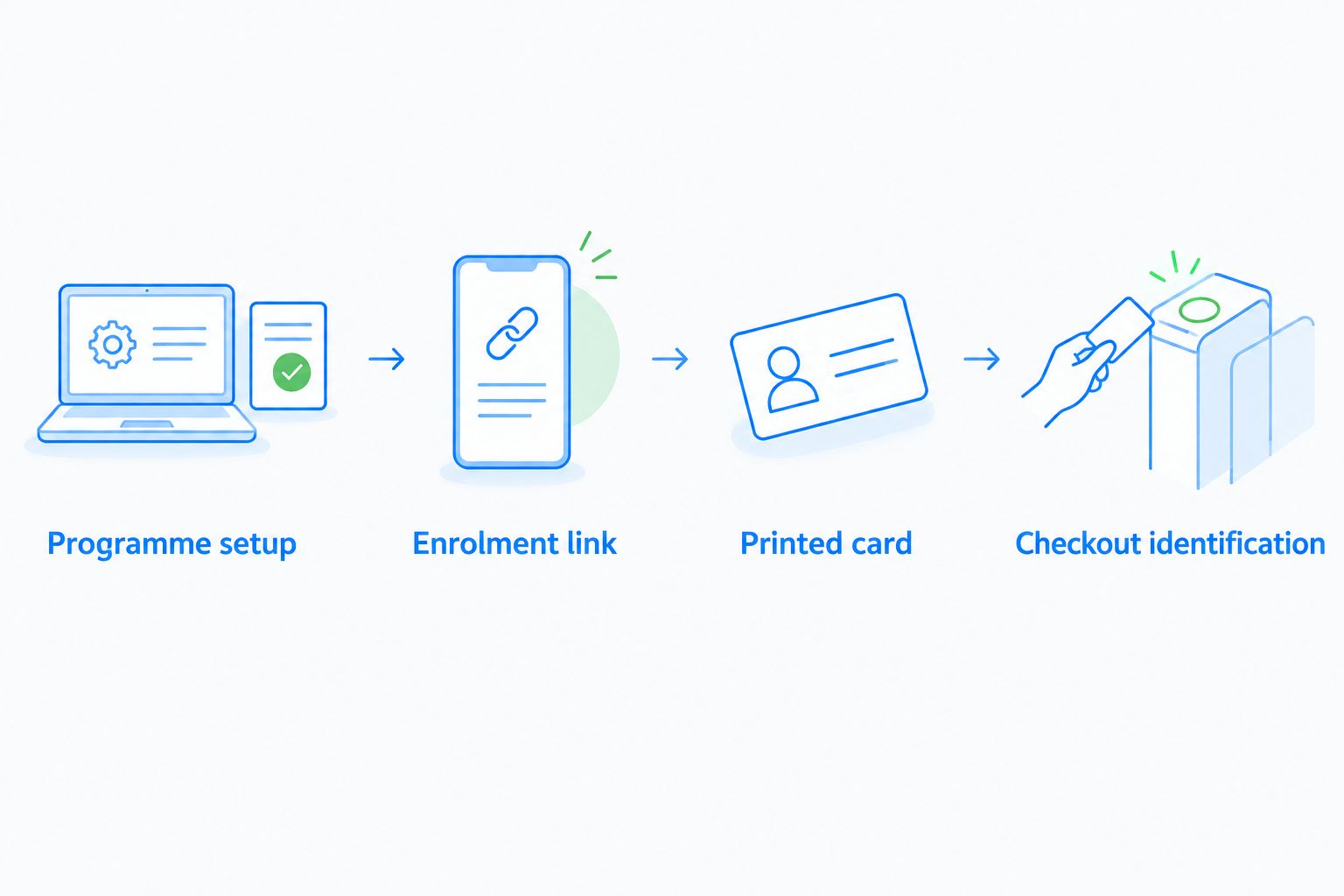
The connection has four parts: programme setup, enrolment link, printed card and checkout identification. Each needs its own check; a successful QR scan verifies only the link.
Build and approve the artwork
- Put the programme purpose on the front. Keep the enrolment action visible without making customers read a paragraph.
- Add the QR code with clear space around it and strong contrast. Do not stretch it, crop it or place decorative artwork across its pattern.
- Add the earning rule and essential conditions in readable type. Avoid absolute promises if exclusions apply.
- Request the printer's artwork requirements before exporting. Confirm the finished format, bleed, safe area and suitable file type rather than assuming a generic template fits.
- Prepare 1 printed proof at the intended finished size. Test that physical proof, not just the enlarged design on a monitor.
Expected result: The card is readable in hand, the QR code scans from the proof and the printed explanation matches Square Loyalty.
For 2026 artwork approval, record who checked the link and programme wording. Print Fast offers custom quotes and live support for printing enquiries; confirm the proposed card format and production requirements before approving the job. A printing enquiry does not configure Square or validate your rewards logic.
Checkout verification
Test enrolment, earning and redemption
- Scan the printed proof with 2 phones. Confirm that each opens the intended page and that the code remains usable under normal counter lighting.
- Complete an enrolment test with a consenting participant. Use accurate contact information that the participant controls.
- Process 1 qualifying purchase through your actual checkout procedure. Identify the intended loyalty account and check that the expected progress appears.
- Verify reward redemption with an account that has legitimately met the programme requirements. Confirm the reward is applied through Square's loyalty process, rather than an unrelated manual discount.
- Review the customer record and receipt information. Check that the purchase and reward outcome agree with the programme rules.
- Rehearse the staff explanation. Ask a colleague unfamiliar with the setup to follow the written instructions without coaching.
Expected result: A customer can enrol from the printed card, earn through the intended checkout process and redeem an earned reward without staff guessing.
Do not manufacture purchases or alter balances casually to make the test pass. Use an authorised testing procedure and retain a note of any account adjustments your team approves.
Variant: update the offer without reprinting instructions
A printed QR code keeps opening the destination encoded in it. Updating Square Loyalty does not rewrite the text on a card already in someone's wallet.
If you expect frequent programme changes in 2026, keep the printed message focused on enrolment rather than detailed reward thresholds. Put the current programme information in the approved digital journey, and still disclose any essential conditions customers need before participating.
Follow this change-control sequence:
- Review the planned programme change and how it affects existing participants.
- Update the relevant digital settings and customer-facing explanation.
- Scan an existing card and verify that its destination still works.
- Compare the old printed wording with the revised rules.
- Withdraw or replace cards whose wording is no longer accurate.
Best for: Businesses expecting programme revisions. The advantage is less dependence on fixed printed details; the limitation is that a vague card still needs a clear, accurate digital explanation.
Troubleshooting
The QR code opens, but no points appear
Opening an enrolment page is not a qualifying purchase. Confirm that the customer completed enrolment, that staff identified the correct loyalty account and that the transaction met the earning rule.
Do not add points merely because someone presents the printed card. Check the purchase and account first.
The code scans on screen but not on the card
Check the physical proof for reduced size, low contrast, distortion, cropping or an obstructed clear area around the code. Re-export clean artwork and repeat the scan test at the intended finished size before approving production.
Staff cannot find the customer's rewards
Confirm the phone number used for enrolment and check the customer record. A different number or duplicate record can send staff looking at the wrong account; use your authorised account-correction process rather than creating another record immediately.
The reward does not apply to the basket
Review the reward's qualifying conditions and the items in the transaction. Check that the account has earned the reward and that staff are using the loyalty redemption process, not expecting the printed card to trigger it.
Paper stamps and digital points disagree
Decide which system controls the entitlement. If Square Loyalty is the source of truth, stop issuing independent paper rewards for the same activity and review discrepancies through an authorised process.
Customize your workflow
Expand the print system only after the card-to-checkout journey works. A counter display can explain enrolment before a customer reaches the register; staff instructions can keep the spoken explanation consistent.
Keep the same programme name, action and conditions across every printed piece. For a 2026 refresh, review the physical proof and the digital destination together rather than approving artwork separately from operations.
FAQ
Can I connect custom loyalty cards to Square POS?
You can use a custom printed card to direct customers into Square Loyalty enrolment. The printed card does not automatically become a supported checkout identifier or update rewards when scanned.
Does a QR code on a loyalty card add Square points?
A QR code that opens an enrolment page does not itself add points. Earning depends on the configured programme rules and a qualifying transaction associated with the correct loyalty account.
Can every customer use the same printed QR code?
Yes, customers can use a shared QR code that opens your programme’s enrolment page. Each customer still needs their own loyalty account; the shared code is not a unique membership identifier.
Can Square scan any barcode I print on a card?
Do not assume an arbitrary printed barcode works as a Square Loyalty identifier. A barcode requires a supported identification workflow; printing one alone does not create that connection.
Is a paper punch card better than Square Loyalty?
A paper punch card suits a deliberately manual programme, while Square Loyalty suits digital reward tracking. Paper marks do not automatically update the digital account, so choose one source of truth for each offer.
What should I test before printing loyalty cards?
Test the physical proof, enrolment destination, account identification, qualifying purchase and reward redemption. Confirm that the printed earning rule matches the active Square Loyalty configuration.
Can Print Fast configure my Square Loyalty account?
Print Fast is an online print shop, not a confirmed Square integration provider. Handle Square account configuration separately and use the printing enquiry to confirm artwork and production requirements.
One last thing
The most useful final test is a customer returning without the printed card. Staff should still know how to identify the loyalty account and handle an earned reward. If they cannot, the process depends on the paper rather than the digital record.
Related guides
- Table tent cards for restaurant menus
- NFC business cards for restaurants and cafes
- How to set up an NFC business card
Request a custom quote for your loyalty-card printing. Include the quantity, finished format, artwork status and required date.

