

Instead of manually retyping Shopify product details into every label design, use a controlled export, a label worksheet and an approved proof to prepare custom product labels for printing. This 2026 workflow connects your catalogue to your packaging without treating a product export as print-ready artwork or assuming an automatic printer integration.
- For Shopify custom product labels, use catalogue data as the starting point, not the finished artwork.
- Print Fast suits Toronto small businesses seeking custom label printing and local support.
- Match every label to a product variant, approved artwork and a confirmed packaging surface.
- Keep barcode labels, shipping labels and branded packaging labels separate.
Why this matters
A Shopify listing and a physical product label serve different purposes. Your listing explains the offer online; your label must fit the container, identify the correct variant and carry the information required for that product.
Print Fast is best for Toronto small businesses seeking custom label printing with local support. The printing handoff still needs approved artwork, quantities and material requirements; a Shopify export does not replace those decisions.
For products with ingredients or usage instructions, the custom label printing guide for cosmetics and skincare brands provides a related packaging starting point. Confirm the requirements for your own product category before approving copy.
The practical goal is traceability. Someone preparing an order should be able to match the physical product, its Shopify variant and its approved label without guessing from a thumbnail.
Before you start
- Access and files: Have Shopify access to view and export products, a spreadsheet editor, editable artwork and permission to approve packaging copy. Assign a label owner who can resolve discrepancies.
- Packaging and specifications: Keep an actual container or package beside you. Record the intended label area, surface, application conditions and required quantities before requesting printing.
- The gotcha: Shopify product exports contain catalogue data, not finished label layouts. Preserve SKU and barcode columns as text when opening the CSV; spreadsheet conversion can remove leading zeroes or change long identifiers.
Do not begin with every item in your store. Choose a representative product with variants so you can check the mapping, proofing and application process before expanding it.
Choose your Shopify label workflow
Start with an export-and-proof workflow unless you already have a maintained automation process. It gives your team a review point before catalogue changes become printed packaging.
| Workflow | Best for | Advantage | Limitation |
|---|---|---|---|
| Export and proof | Small catalogues and occasional packaging changes | Creates a reviewable snapshot for artwork preparation | Requires a fresh export and manual reconciliation |
| Update review queue | Teams with frequent product changes | Flags changed records for label review | Requires automation configuration, monitoring and approval controls |
Neither workflow makes a Shopify product page a compliance-approved label. Both need a packaging review and a printing handoff.
For your 2026 setup, use the export workflow first. Add an update queue only after your team can consistently match products to approved artwork and explain which changes require a reprint.
Shopify product export
- In Shopify admin, open Products. Identify the products included in the label project rather than mixing packaging work with unrelated catalogue maintenance.
- Select Export. Choose the relevant product scope in the export dialogue, then select Export products to obtain the CSV.
- Save an untouched copy. Create a separate working copy so sorting, editing or formatting cannot overwrite the original catalogue snapshot.
- Import identifiers as text in your spreadsheet editor. Check the exported SKU and barcode values against the product record before using them in artwork.
- Keep variant rows distinct. Match each size, scent, colour or other option to the physical item it represents; do not assume the product title alone identifies the label.
Expected result: You have a preserved export and a working file in which each in-scope variant remains identifiable.
The export is a snapshot, not a live connection. If someone changes a product after export, reconcile that change before proof approval rather than silently combining different versions.
Label worksheet
- Create 1 master worksheet for the project. Give each distinct label design its own row, even when several labels belong to the same Shopify product.
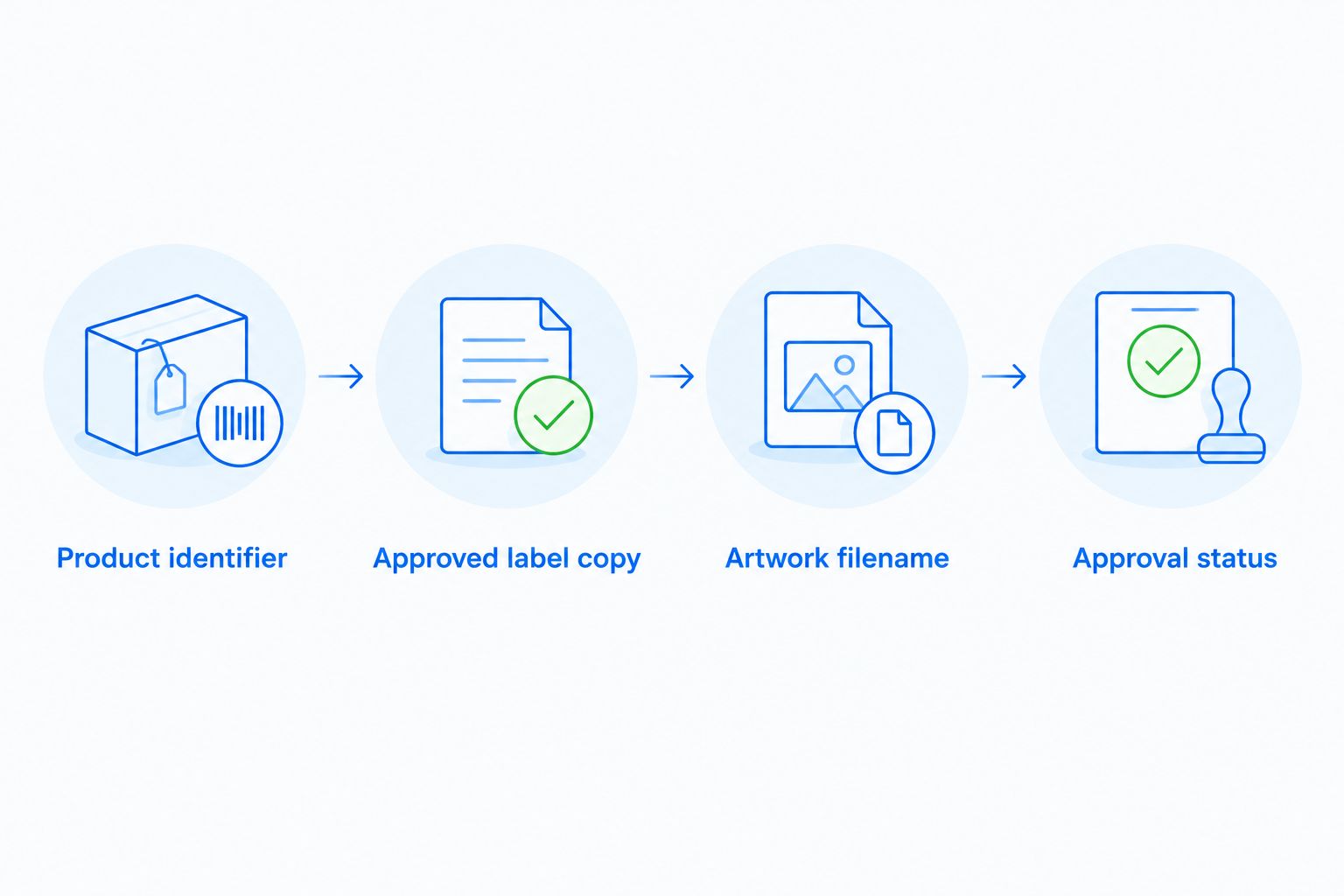
- Add columns for product identifier, variant, SKU, barcode if used, approved label copy, artwork filename, revision, quantity and approval status.
- Add production details separately: finished dimensions, container surface, exposure conditions and application method. These describe the physical job, not the online listing.
- Assign an owner to missing or conflicting information. Mark unresolved rows as blocked rather than filling gaps from memory.
- Name the working document clearly, such as
label-register-2026, and retain earlier approved revisions outside the active production folder.
Expected result: Every intended label has a documented connection to a product, an artwork file and an approval decision.
A SKU identifies your internal item; a barcode has a separate scanning purpose. Do not generate a retail barcode by turning an arbitrary SKU into bars. Confirm the identifier and barcode requirements for the channel where the product will be scanned.
Artwork and proof approval
- Build the label layout around the actual package. Use approved copy from the worksheet rather than pasting the entire Shopify description into the design.
- Ask the printer for the required artwork specifications. Confirm bleed, safe area, colour preparation, image quality and any cutting requirements before exporting the production file.
- Produce 1 actual-size paper mock-up. Wrap or position it on the package to check fit, seams, curves and readable placement.
- Arrange 2 separate approvals: a content check and a production check. The content approver checks product identity and required information; the production approver checks dimensions, artwork and quantities.
- Record the approved revision and approval date in the worksheet. Supply only that revision for printing and remove superseded files from the production handoff.
Expected result: The approved artwork matches the correct product and fits the intended package at actual size.
A paper mock-up checks layout, not adhesive performance or printed colour. Ask how to assess the proposed material on your packaging before committing to the production specification.
Keep approval outside the automation path. A product update should create a review task, not permission to print unreviewed packaging.
Printing handoff and receiving check
- Send Print Fast the approved artwork, finished dimensions, quantities by design and packaging requirements. Include the surface and exposure conditions rather than requesting a material by appearance alone.
- State your required completion and delivery dates. Confirm the turnaround for the specific label job; do not assume a general rush service applies to every material or finishing requirement.
- Identify the approved revision in the handoff. Ask questions about discrepancies before authorizing production, especially when a proof differs from the supplied file.
- On receipt, compare the labels with the approved proof and worksheet. Check product identity, variant, quantity, dimensions and legibility before releasing them to packing staff.
- Apply a label to the actual packaging under the intended application conditions. If the label contains a barcode, test it with the scanner used in your workflow.
Expected result: Packing staff receive an identified label batch matched to the correct product and approved artwork.
Keep receipt checks in your 2026 label register. Record any issue against the artwork revision and production batch so a correction addresses the cause rather than simply repeating the order.
Review labels whenever a Shopify product is updated
An update review queue is the adjacent workflow for teams that change products regularly. Its purpose is to notify the label owner, not automatically regenerate approved packaging.
Use an automation service that supports Shopify product-update events and your chosen task destination. Check the connector's current permissions, event coverage and field access before configuring it; there is no universal set of interface labels across services.
Set up the queue around these rules:
- Product identification: Include the product identifier and enough variant detail for the reviewer to locate the affected label record.
- Label-relevant changes: Review changes to printed names, variant descriptions, identifiers, quantities or other information that appears on packaging.
- Change comparison: Compare the new value with an approved baseline when your automation supports it. A notification alone does not explain whether artwork needs changing.
- Approval status: Put affected artwork into review. Keep the previously approved revision identifiable until a replacement is approved.
Test the queue with a controlled edit before relying on it. Verify that the task arrives, identifies the right product and reaches the assigned owner.
An online edit does not automatically require a label reprint. Changing a web-only description is different from changing information printed on the container. Document that distinction in your 2026 review rules so routine merchandising edits do not trigger unnecessary production work.
Troubleshooting
Leading zeroes disappear from identifiers
Reimport the original CSV and set identifier columns to text before loading the data. Compare the recovered values with Shopify; changing the cell format after conversion does not restore digits already lost.
Several variants receive the same artwork
Check the worksheet mapping. Product titles are not enough when variants need different labels; use stable identifiers and explicit option details, then separate any rows that share artwork incorrectly.
The label looks correct onscreen but does not fit
Check the finished dimensions against the actual package and print the mock-up at actual size. Curves, tapering and seams need a physical placement check, not just a rectangular measurement in a design file.
The barcode does not scan after application
Check the encoded identifier, artwork sharpness, contrast, clear space and placement. Test before and after application to separate artwork problems from distortion caused by the package surface.
A Shopify update does not reach the review queue
Check the automation connection, permissions, event filters and task destination. Confirm whether the chosen event covers the specific product or variant change; retain a manual reconciliation process while fixing the gap.
Customize your workflow
Expand the process by product family, not by copying the entire catalogue into a large design file. Shared layouts make repeat work simpler, but each variant still needs its own identity and approval record.
Keep these label jobs distinct:
- Branded packaging: Carries your approved product identity and packaging copy. Review changes against the physical product.
- Internal identification: Helps staff identify stock. Check that internal codes cannot be mistaken for customer-facing information.
- Shipping labels: Support parcel fulfilment. Do not treat a carrier label as a substitute for product packaging information.
Add a change reason to every new artwork revision. A note such as corrected copy or changed container helps the next person understand whether existing labels remain appropriate.
For repeat printing, send the approved file again rather than asking a supplier to find the latest version from an old conversation. Your worksheet should identify the source of truth, even when the same design has been printed before.
FAQ
How do I make custom product labels from Shopify?
Export the relevant Shopify products, map each variant to a label worksheet, create artwork and approve a proof before printing. The export supplies catalogue data; it does not create finished packaging artwork.
Does Shopify automatically send product labels to Print Fast?
This workflow uses a reviewed file handoff to Print Fast, not an automatic printing connection. Keep artwork approval and production authorization as explicit steps.
Are Shopify product labels the same as shipping labels?
No. Product labels identify or describe the item and its packaging, while shipping labels support parcel delivery. Prepare and review them as separate jobs.
Can I use my Shopify SKU as a retail barcode?
A Shopify SKU is not automatically a valid retail barcode identifier. Confirm the identifier and scanning requirements for your sales channel before creating barcode artwork.
What should I send a printer for custom product labels?
Send approved artwork, finished dimensions, quantities by design and packaging requirements. Include the surface, application conditions, required date and approved revision so the printer can assess the job.
Do I need new labels every time I edit a Shopify product?
No. Review whether the edit changes information printed on the packaging or affects the physical product. Web-only copy changes do not automatically require replacement labels.
How do I choose a material for custom product labels?
Choose the label specification around the package surface, exposure conditions and application method. Ask the printer to confirm suitability rather than assuming an attractive finish will perform correctly.
One last thing
The best final check is the packed product, not the artwork file. Put the labelled item beside its Shopify variant record and approved proof. That catches a correct design applied to the wrong product—something a screen-only review cannot catch.
Keep that physical check in your 2026 launch checklist before expanding the workflow to more products.
Related guides
- Same-day sticker printing for product launches
- How to choose sticker material for outdoor use
- Custom stickers for small-business packaging
Request a custom product label quote from Print Fast with your approved artwork, dimensions, quantities and required date.

